Opportunities
Opportunities let you send leads and business opportunities to your partners directly inside PartnerPortal. It’s a simple way to hand a prospect to the right partner, keep the conversation in one place, and track what happens next — streamlining collaboration between you and your partner network.
Set Up Opportunities
Section titled “Set Up Opportunities”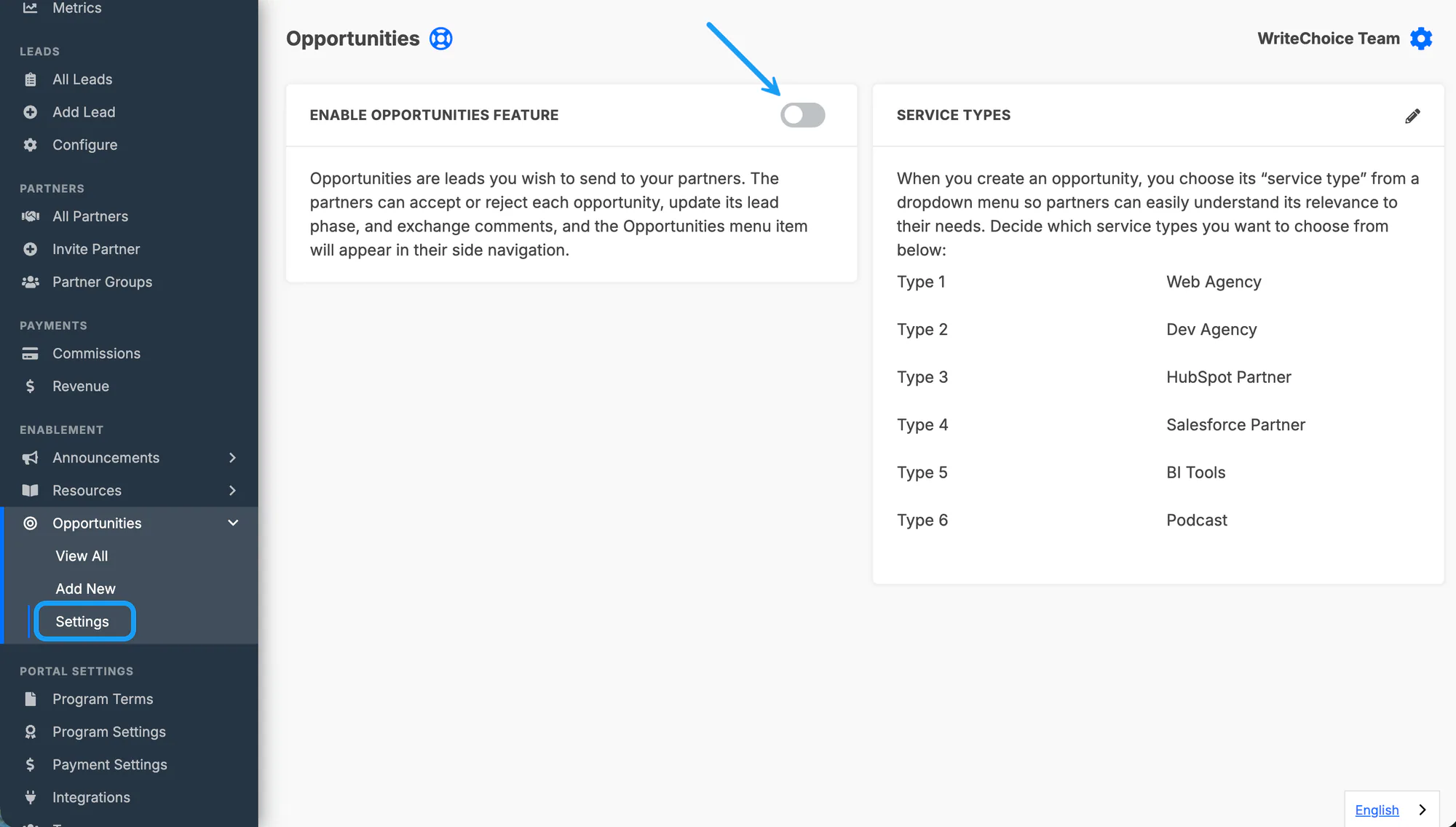
Before you can send opportunities, turn the feature on and define the service types partners will choose from.
Go to Settings under Opportunities in the main menu.
Enable the Opportunities feature.
Define your service types — the options in a dropdown that partners select from. Set these to match your business offerings so they’re meaningful to partners (for example, the kinds of work or products an opportunity relates to).
Using Opportunities
Section titled “Using Opportunities”Once Opportunities is enabled, you can create opportunities, send them to partners, and manage them over time.
Create and send an opportunity
Section titled “Create and send an opportunity”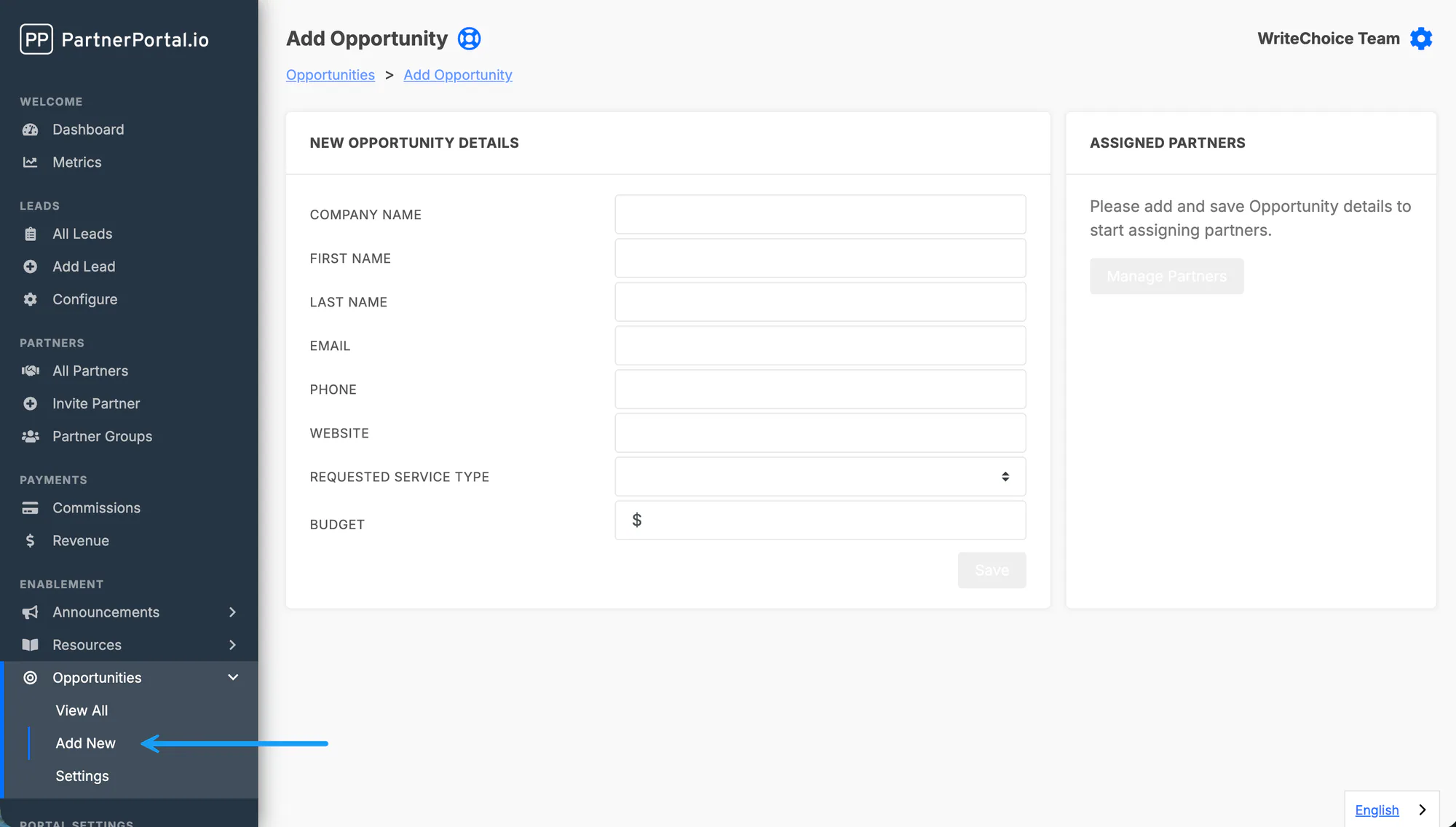
Go to the Opportunities tab in the sidebar and select Add New.
Fill in the opportunity details — contact information, budget, service type, and any additional notes.
Select Save to create the opportunity.
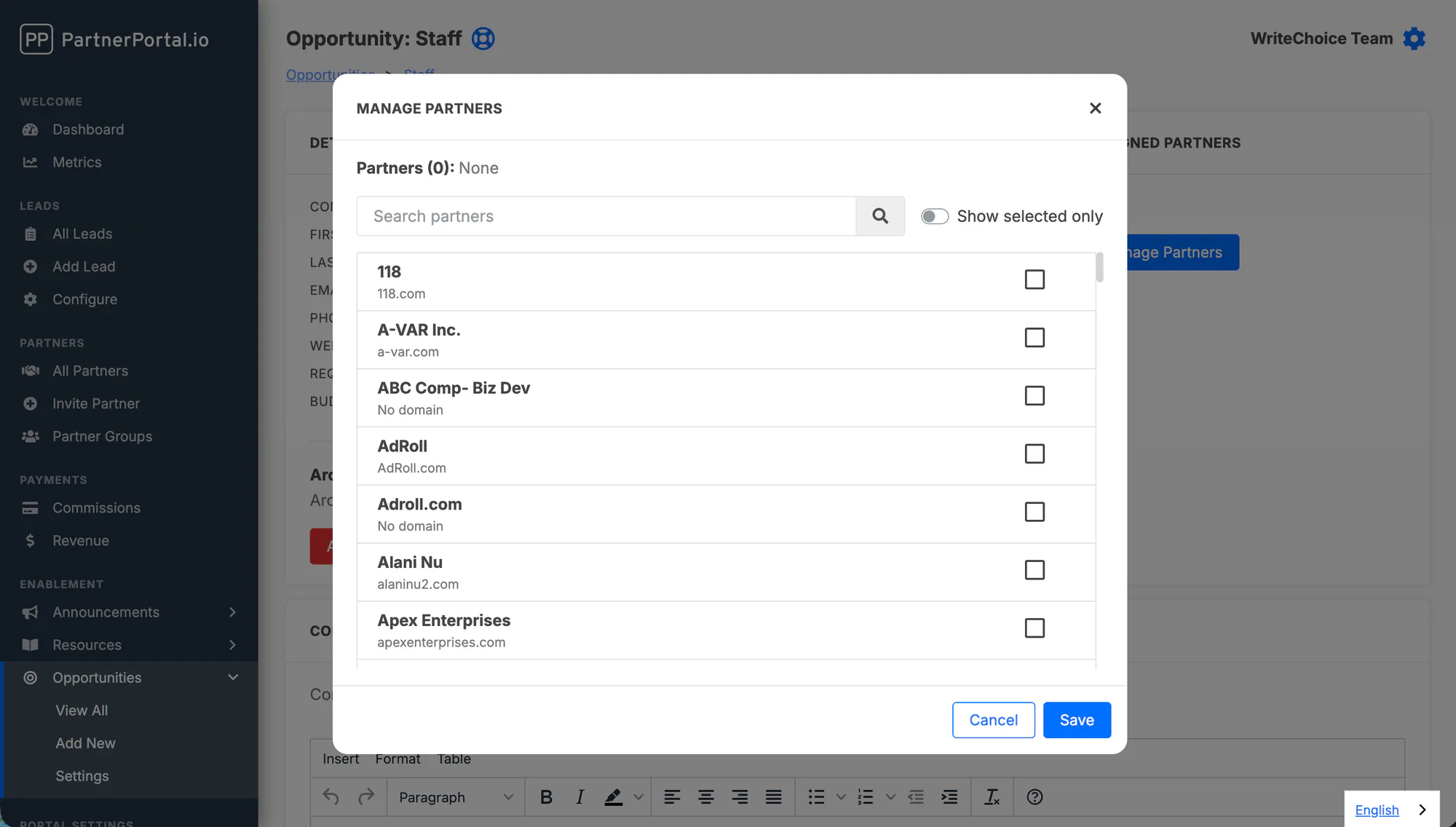
In the Partners section, select Manage to open the partner selection window, then choose the partner (or partners) you want to send the opportunity to.
Select Save to send it. The selected partners are notified and can log in to review and respond.
Manage opportunities
Section titled “Manage opportunities”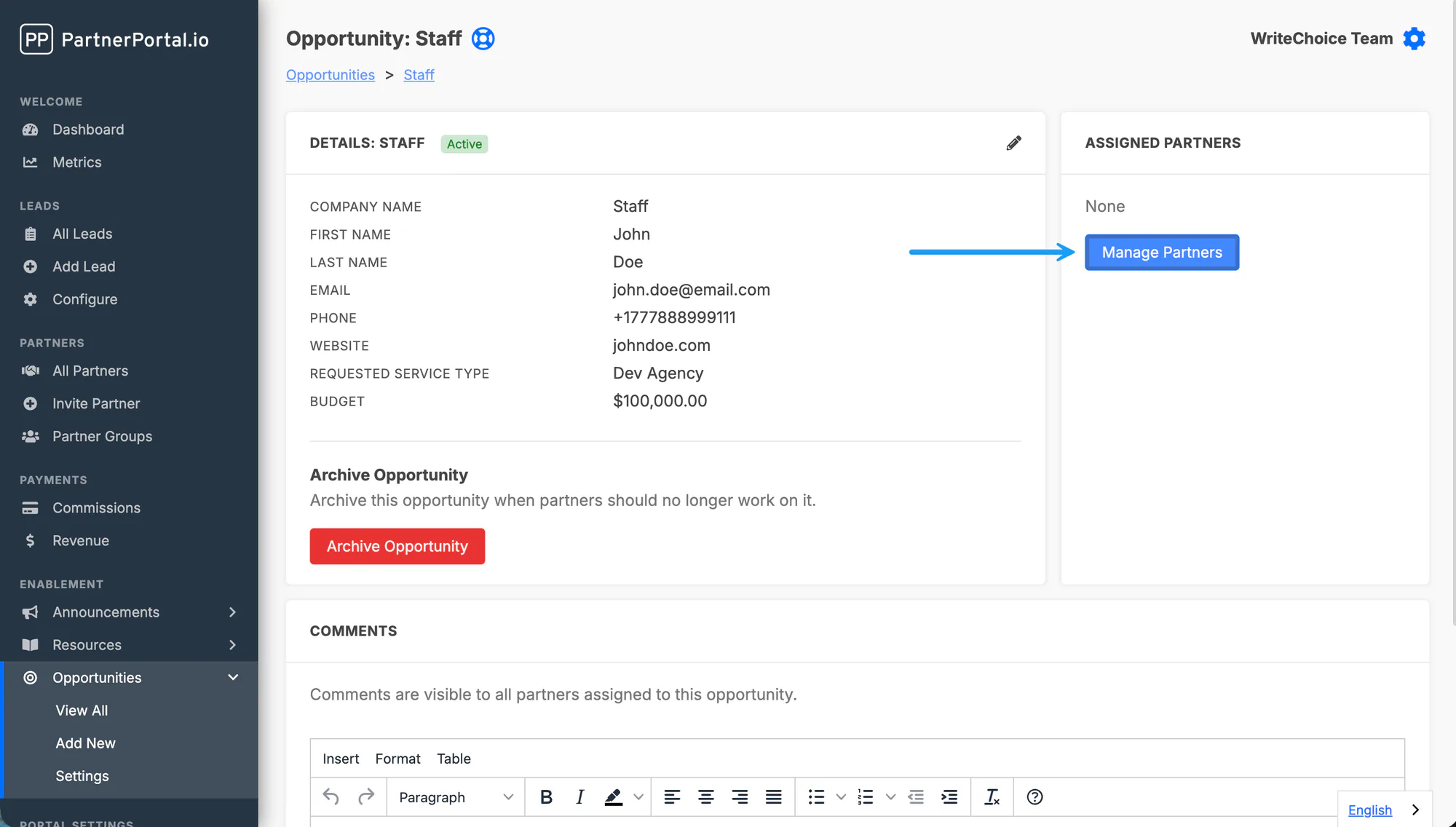
- Track status. Monitor the status of sent opportunities in the Opportunities tab — partners update it as they work the opportunity.
- Communicate. Talk to partners in the opportunity’s Comments section — see Comment with partners below.
Comment with partners
Section titled “Comment with partners”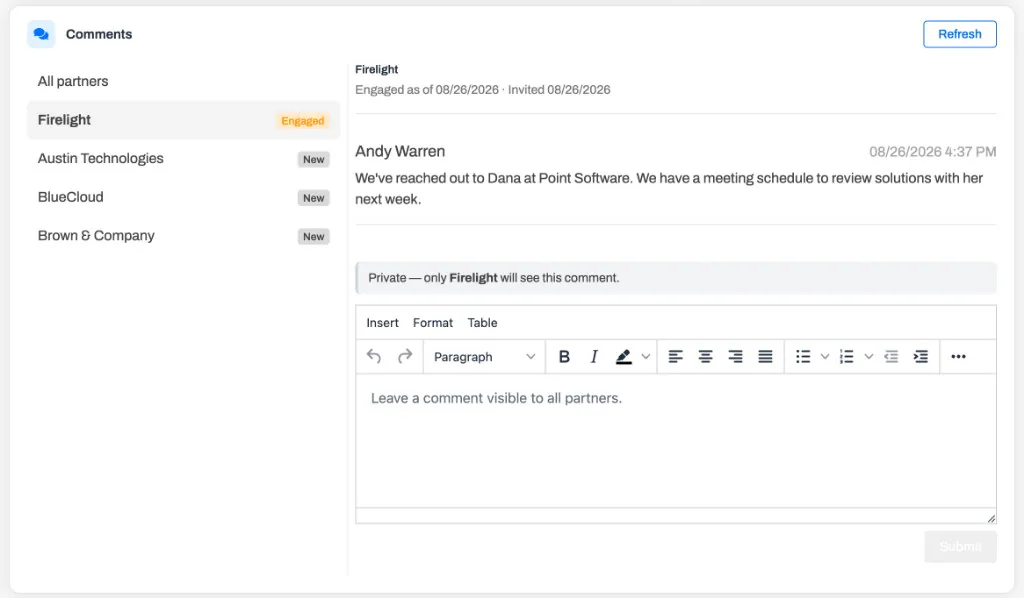
The Comments section on an opportunity is where you and your partners talk about it. Every partner you send the opportunity to gets their own private thread — a one-on-one conversation that only you and that partner (and their team) can see. Partners never see each other’s comments.
- Choose who you’re talking to. The list on the left shows every partner on the opportunity, each with their current status. Select a partner to open that private conversation, or select All partners to post a single comment that everyone assigned to the opportunity can see.
- Know who will see it. Before you post, a banner confirms exactly who will receive the comment — one partner (private) or every partner on the opportunity.
- Stay up to date. Select Refresh to pull in new replies without reloading the page.
Archive or delete an opportunity
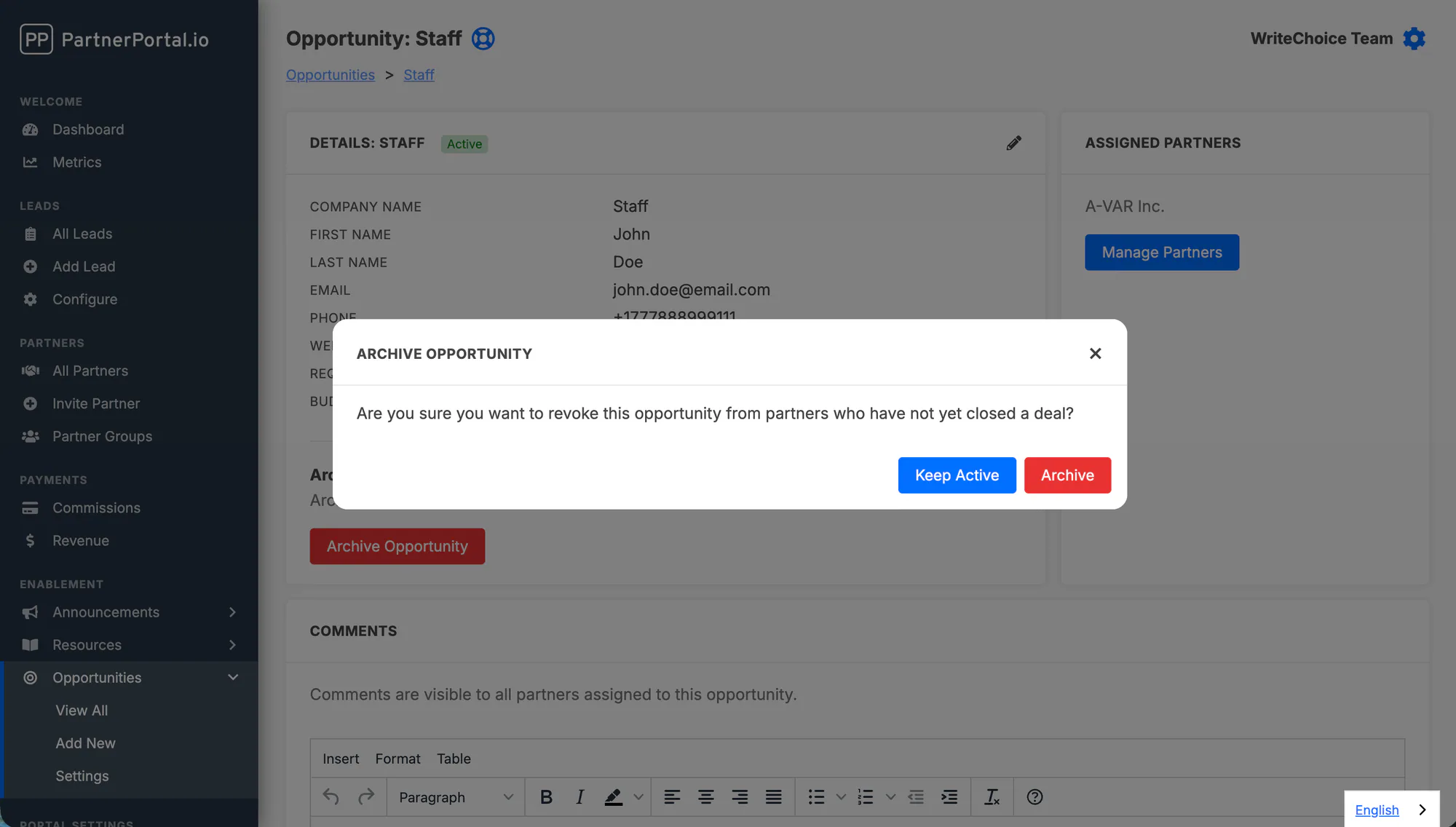
Section titled “Archive or delete an opportunity”Archiving makes an opportunity inactive and stops all communication, while keeping its history available to you. Use it when you’re no longer working an opportunity with a partner.
Open the opportunity.
Select Archive and confirm.
Deleting removes an opportunity completely. An opportunity must be archived before it can be deleted.
Open the archived opportunity.
Select Delete Opportunity and confirm.