
How to Integrate Xero with PartnerPortal
Use this guide to connect Xero to PartnerPortal, map each portal lead to the right Xero contact, and let customer payments from Xero flow into PartnerPortal’s in-app Revenue ledger so scheduled commissions can be generated from them.
Connect Xero
Section titled “Connect Xero”Before you start
Section titled “Before you start”- Admin access to PartnerPortal
- A Xero account, with access to the organisation you want to connect
- Xero contacts created for the customers behind the leads you want to track
Connect your Xero account
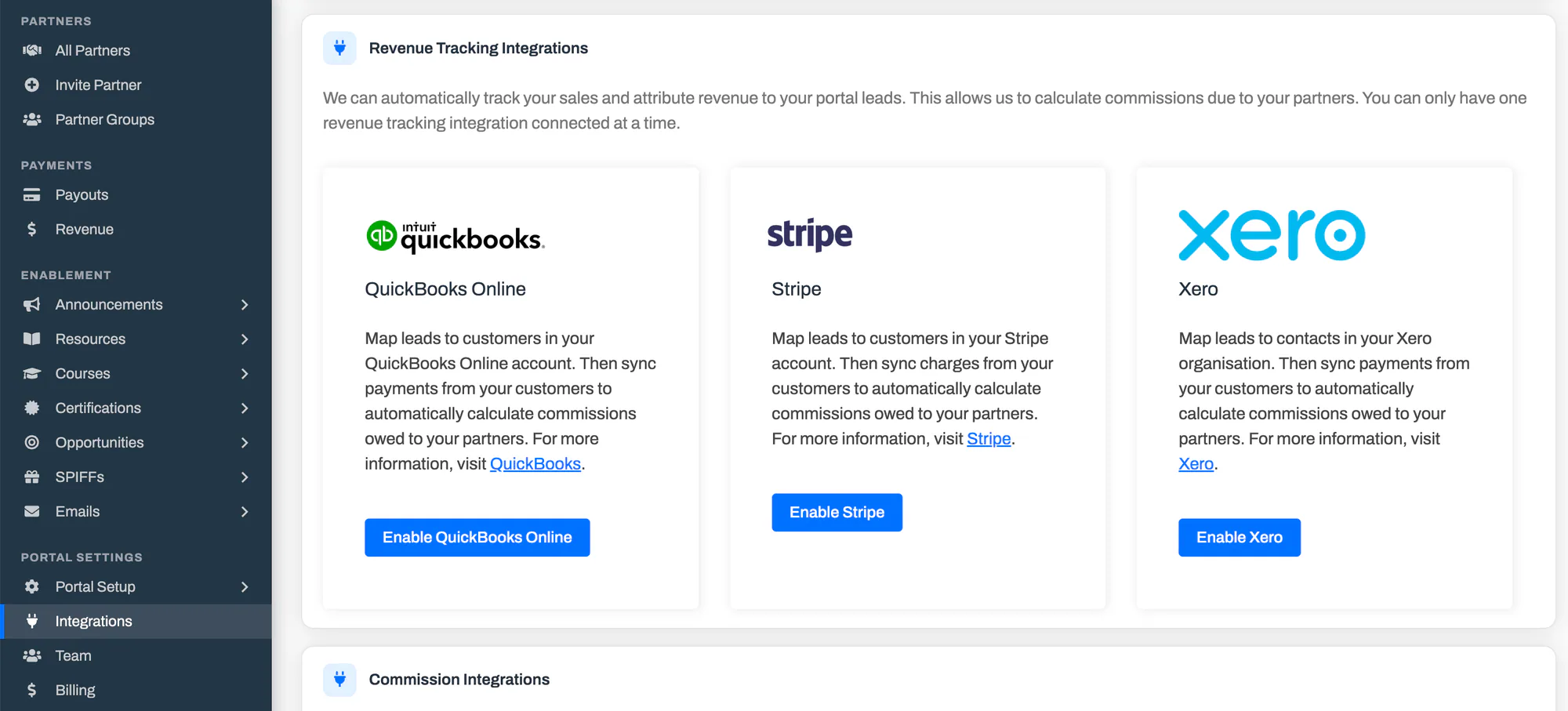
Section titled “Connect your Xero account”Open Integrations from the PartnerPortal sidebar.
Click Enable Xero.
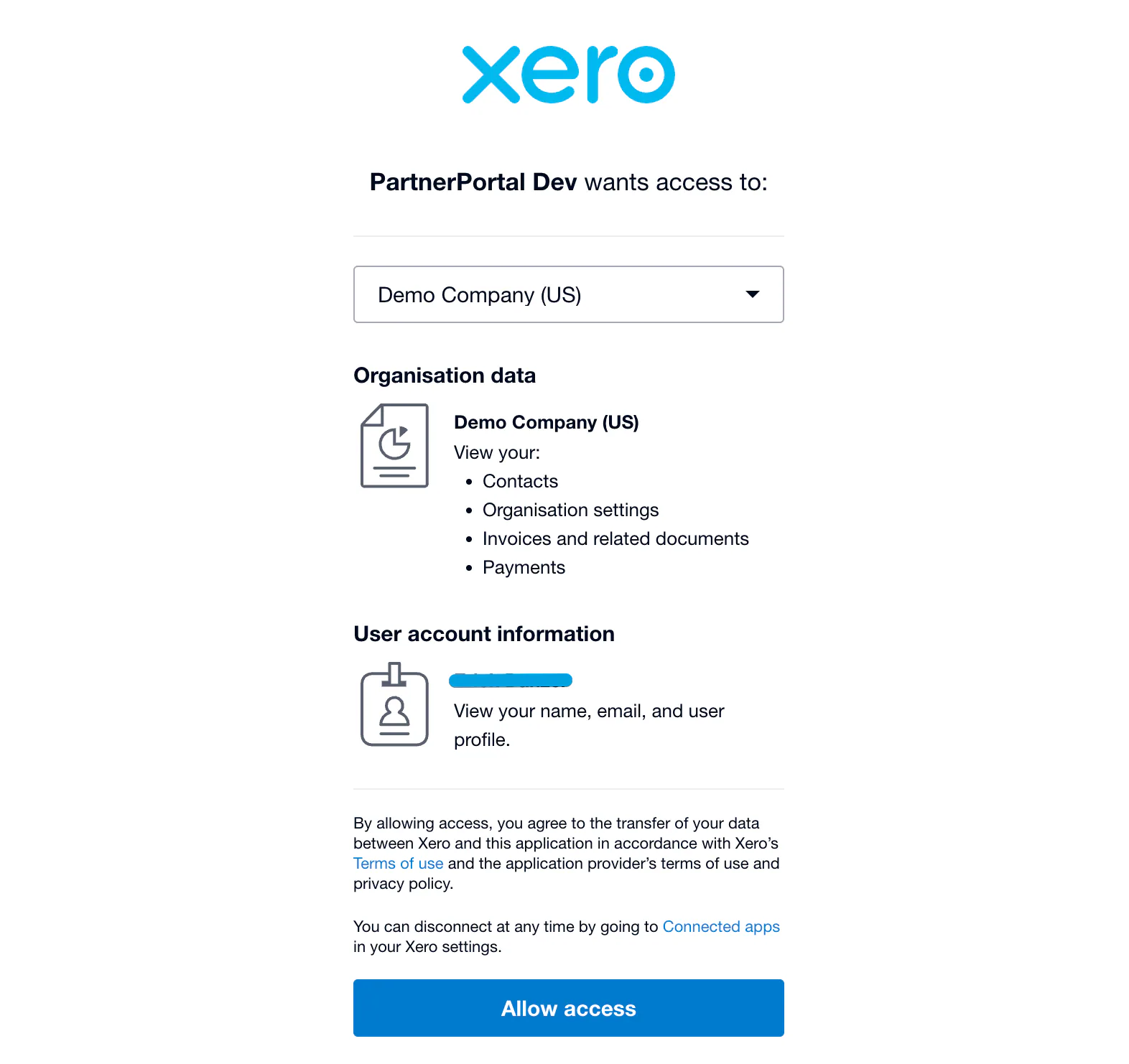
Sign in to Xero and approve the connection.
Choose the Xero organisation you want to connect.
Reauthorize Xero
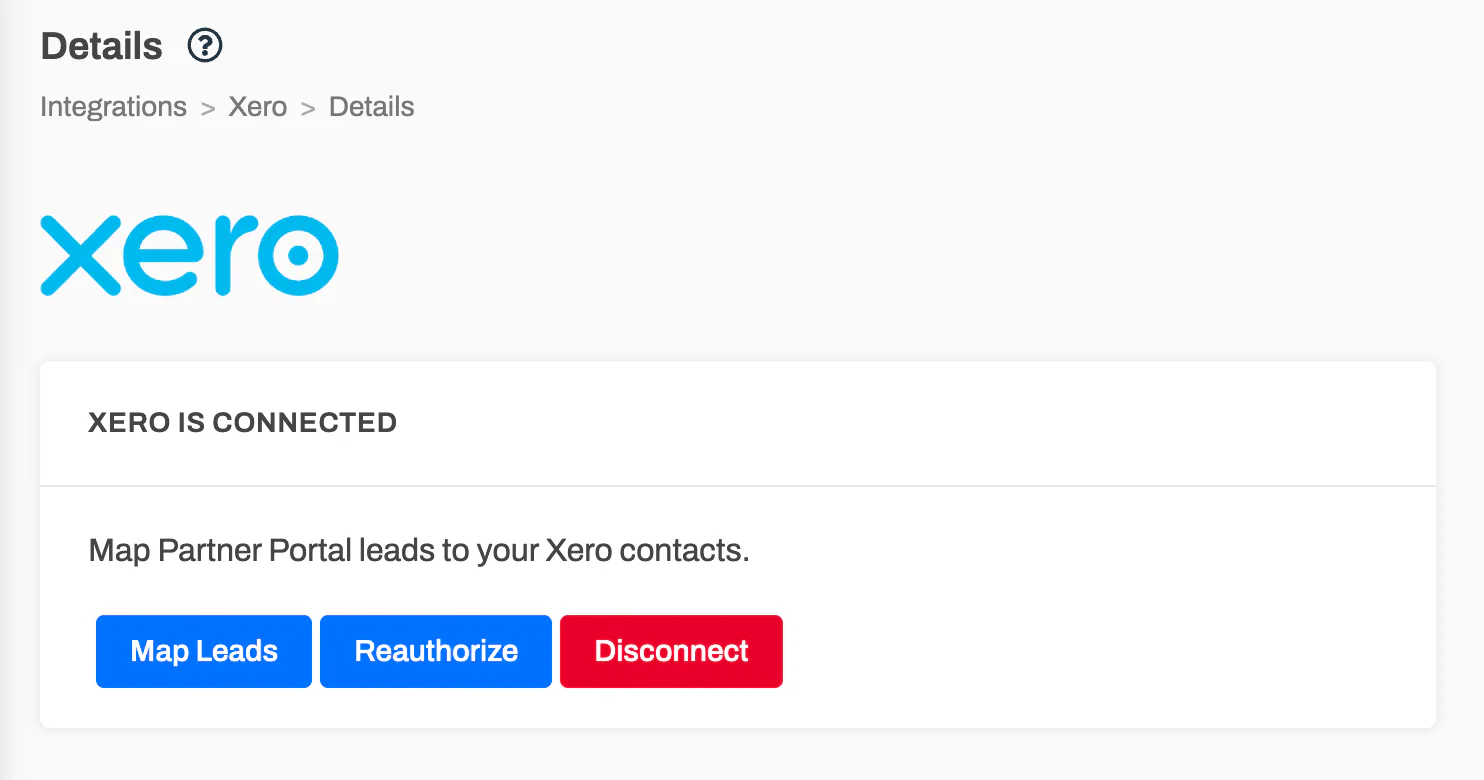
Section titled “Reauthorize Xero”If Xero asks you to reconnect, use the Reauthorize action from the integration instead of disconnecting and reconnecting from scratch.
How Xero Revenue Capture Works
Section titled “How Xero Revenue Capture Works”Once Xero is connected, PartnerPortal captures customer payments from Xero into its in-app Revenue ledger, matches each payment to a lead, and uses those records when scheduled commissions are generated.
Because Xero does not push a notification when a payment is received, PartnerPortal checks Xero for new and changed payments on a regular schedule rather than instantly. New payments appear on the Revenue page a short time after they are recorded in Xero, not the moment they happen.
What PartnerPortal captures:
- customer payments on sales invoices (money received from your customers)
- payment deletions — if a captured payment is later deleted in Xero, PartnerPortal reflects that so it no longer counts toward commissions
What PartnerPortal does not capture:
- supplier or bill payments (money you pay out)
- customer refunds and credit notes, which are not captured in this version
Map Leads to Xero Contacts
Section titled “Map Leads to Xero Contacts”Mapping tells PartnerPortal which Xero contact belongs to which lead, so payments from that contact are attributed to the right lead and partner.
Click Map Leads on the Xero integration.
For each lead, type to search your Xero contacts by name.
Select the matching Xero contact for that lead.
Save the mappings.
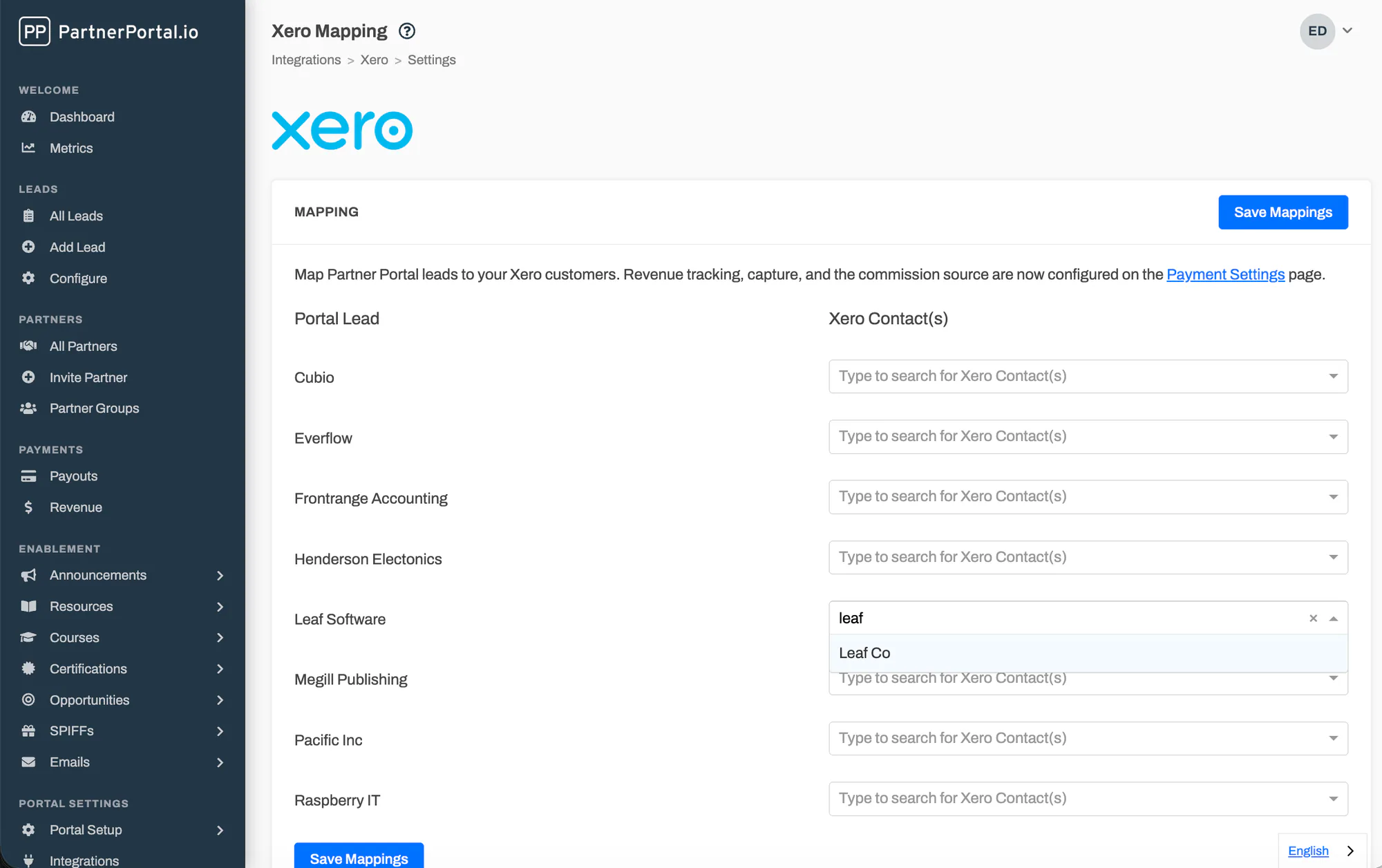
A lead can have more than one Xero contact mapped to it when the same lead’s revenue comes from more than one contact record.
How Xero revenue is matched
Section titled “How Xero revenue is matched”When a Xero payment is captured, PartnerPortal tries to match it to a lead in this order:
- saved Xero contact mapping first
- exact customer-email match next
- website-domain match last
Email and domain matches can still need review. Once your team confirms the right lead, PartnerPortal saves that contact mapping so future payments from the same Xero contact match more directly.
Review Captured Revenue and Import Older History
Section titled “Review Captured Revenue and Import Older History”Turning on capture handles new Xero payments going forward. It does not automatically pull in payments that already existed in Xero before capture was enabled.
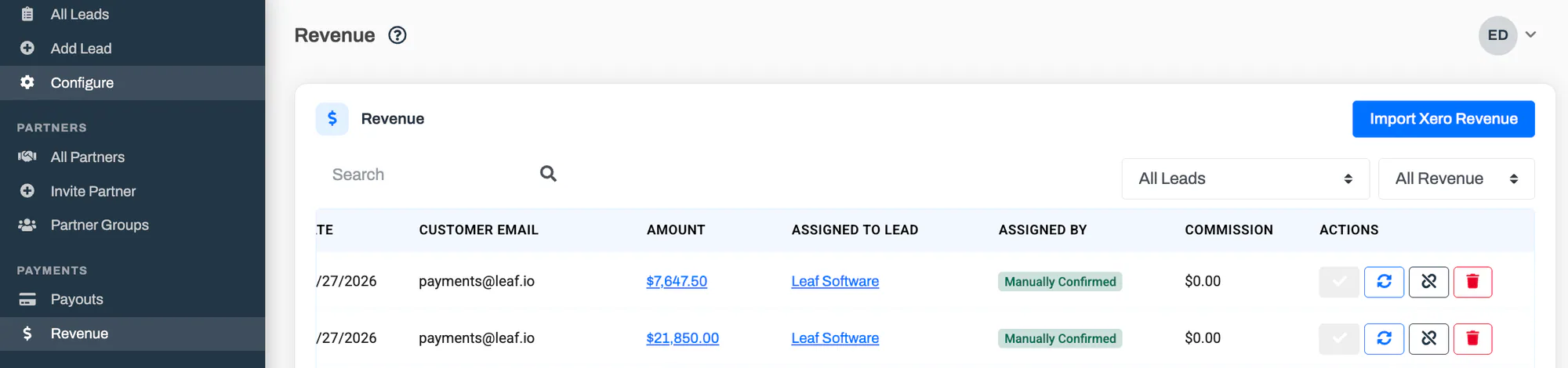
If you want older Xero revenue available inside PartnerPortal:
Make sure Xero revenue capture is on.
Open the Revenue page.
Click Import Xero Revenue and choose the start and end dates for the history you want to backfill.
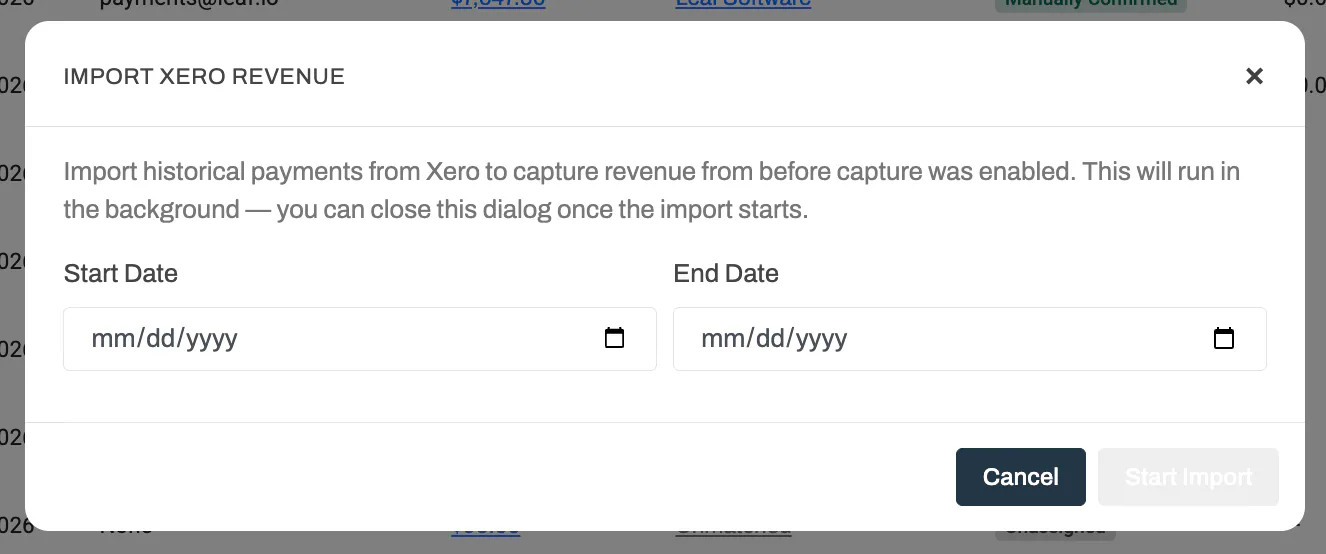
Imported payments are matched to leads the same way new payments are, and PartnerPortal skips any payment it has already captured, so importing a range twice will not create duplicates.
Settings
Section titled “Settings”Xero revenue settings live in Portal Setup → Payment Settings, while the Xero integration page remains the place for lead-to-contact mappings.
Once Xero is connected, the shared Payment Settings page is where the Xero-specific revenue controls appear — revenue capture, import status, and deleting captured revenue.
Revenue Tracking
Section titled “Revenue Tracking”Capture Xero Revenue controls whether PartnerPortal stores Xero payments inside the app. It is turned on automatically when you first connect Xero.
When it is enabled:
- new Xero payments appear on the Revenue page
- PartnerPortal records when capture was enabled
- the integration can show import status if a historical import is running, completed, or failed
Delete Captured Revenue
Section titled “Delete Captured Revenue”If you need to clear the in-app Xero revenue ledger, the destructive delete action lives under the Xero revenue settings in Payment Settings.
This deletes captured Xero revenue records from PartnerPortal, but it does not remove saved lead-to-contact mappings and it does not disconnect Xero. Revenue records already tied to an issued payout are preserved.
Frequently asked questions
Section titled “Frequently asked questions”How soon do Xero payments show up in PartnerPortal?
Section titled “How soon do Xero payments show up in PartnerPortal?”Shortly after they are recorded in Xero, not instantly. PartnerPortal checks Xero for new and changed payments on a regular schedule, so there is a short delay between a payment being applied in Xero and it appearing on the Revenue page.
Does connecting Xero import my past payments?
Section titled “Does connecting Xero import my past payments?”No. Capture handles new payments going forward. To bring in payments from before you connected, use the import tools on the Revenue page to backfill a date range.
What happens if I turn off Xero revenue capture?
Section titled “What happens if I turn off Xero revenue capture?”PartnerPortal stops collecting new Xero payments and pauses scheduled payout generation for the portal, because Xero revenue is calculated entirely from the captured in-app ledger. Turn capture back on to resume.
Can I connect more than one Xero organisation?
Section titled “Can I connect more than one Xero organisation?”Each connection tracks a single Xero organisation. To track a different organisation, disconnect and reconnect against that one.
Does PartnerPortal change anything in my Xero account?
Section titled “Does PartnerPortal change anything in my Xero account?”No. The integration is read-only — PartnerPortal reads contacts and customer payments but never creates, edits, or deletes anything in Xero.
Which Xero payments count toward commissions?
Section titled “Which Xero payments count toward commissions?”Customer payments on sales invoices (money received). Supplier and bill payments are ignored, and customer refunds and credit notes are not captured in this version.