How to Sync Leads to Your CRM
PartnerPortal pushes the partner leads you approve into your CRM and keeps them connected as the deal moves forward. This page explains how that flow works across every supported CRM — how leads reach your CRM, which direction data syncs, and how you control whether a given lead creates a new record, links to an existing one, or stays out of the CRM entirely. The exact screens and settings differ by CRM, so each section links to the provider guide for the specifics.
Supported CRMs
Section titled “Supported CRMs”PartnerPortal has a native integration with each of these CRMs. The flow described on this page applies to all of them; follow the provider link for connect steps, mapping screens, and settings unique to that CRM.
Connect your CRM
Section titled “Connect your CRM”Before leads can sync, a portal admin connects your CRM once from the Integrations area, authorizes the connection, and configures how data should map. Only portal admins can connect or configure a CRM.
For the exact connect steps for your CRM, see the provider guide linked above.
How mapping works
Section titled “How mapping works”Mapping controls which records get created in your CRM and how their fields are filled in from the lead. Most CRMs follow the same shape: each approved lead creates three linked records — a deal, a contact or person, and a company or organization — and you map the pipeline, deal stages, and any custom fields you want partners’ lead data to populate.
Salesforce is the exception. Instead of a fixed three-record shape, Salesforce lets you choose which objects to create (including custom objects) and which one is the primary linked record. See the Salesforce guide for its flexible mapping.
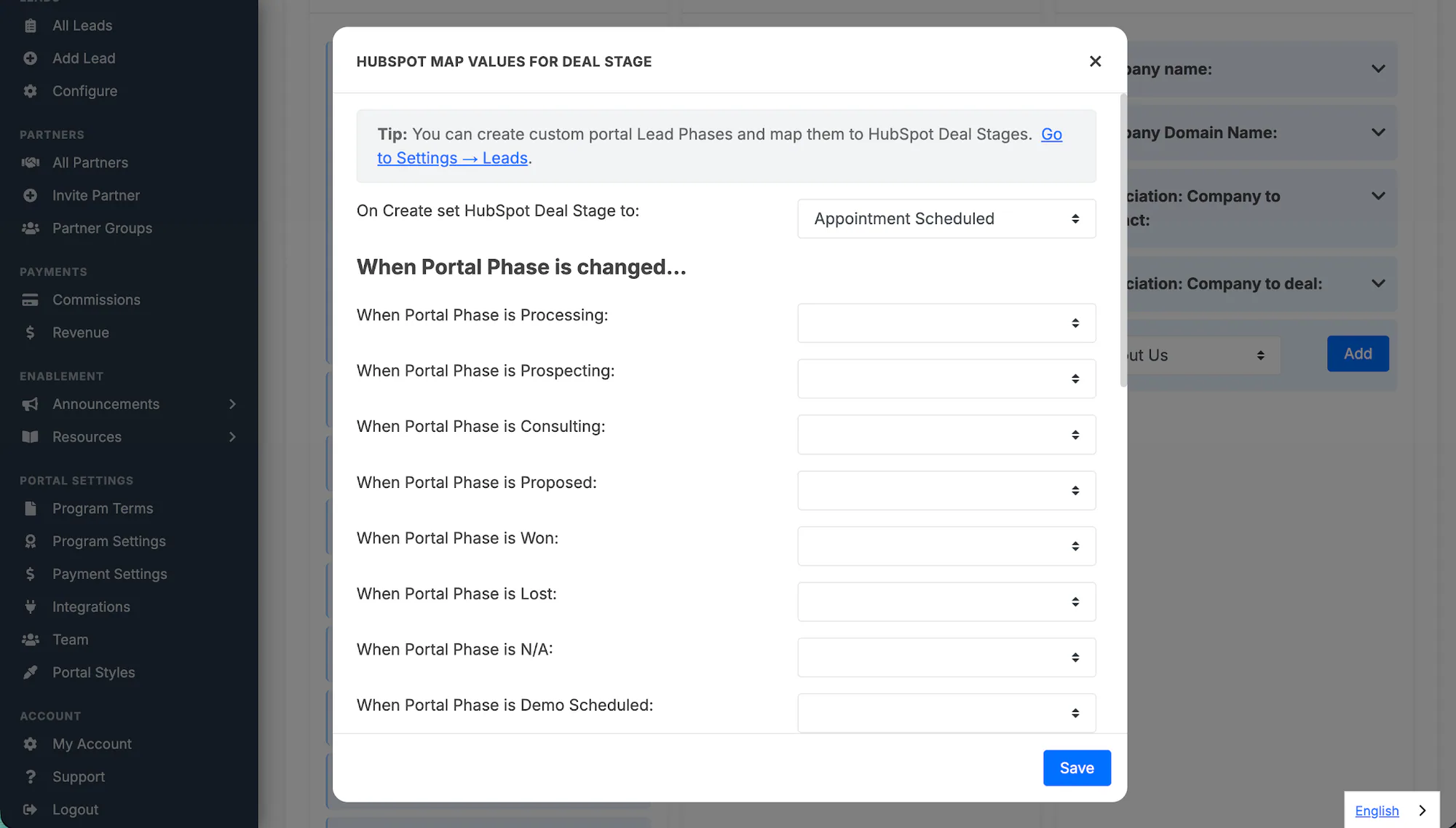
For the full mapping walkthrough — pipelines, stages, and custom fields — see your CRM’s guide.
Customize created deal names
Section titled “Customize created deal names”The name of a new CRM deal or opportunity comes from your CRM field mapping. Most portals map the CRM name field to PartnerPortal’s generated deal name, which uses the lead’s Company Name when available, then the lead contact’s name, then a fallback name like Deal for Lead 12345.
If your team wants generated CRM deal names to carry a consistent marker, add one from Account & Settings → Leads → General Settings → CRM deal name suffix. For example, entering - Partnerships creates CRM names like Acme Inc - Partnerships.
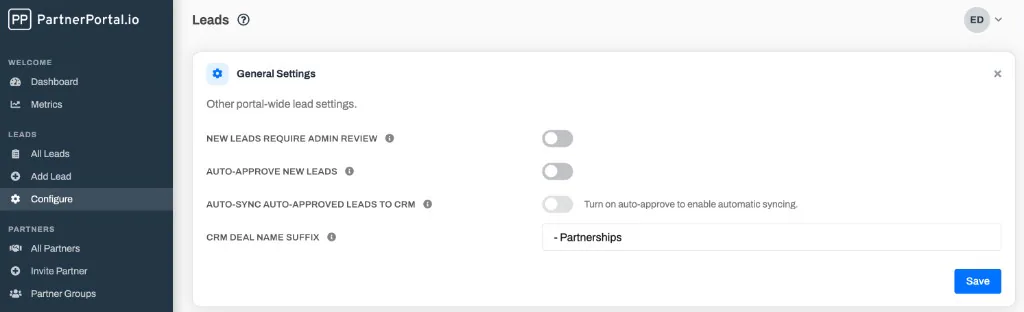
Leave the suffix blank if you want generated CRM deal names to use only the mapped lead details. The suffix applies to new CRM records created after you save the setting.
Sync direction and two-way sync
Section titled “Sync direction and two-way sync”There are two directions data can move, and how much moves depends on the CRM and your settings.
- Portal to CRM (on approval). When you approve a lead, PartnerPortal creates the mapped records in your CRM and sends the lead’s data into them. This happens for every CRM.
- CRM to Portal (deal details sync back). Once a lead is linked, changes to the deal’s stage, close value, close date, and won/lost status in your CRM can flow back into the linked portal lead, so partners see up-to-date progress.
- Two-way sync (portal edits pushed back to the CRM). HubSpot and Pipedrive support pushing changes made in PartnerPortal back into the CRM (on HubSpot, gated behind reseller permissions).
By default, edits made in PartnerPortal do not push back into your CRM — the exception is turning on Two-Way Sync, available on HubSpot and Pipedrive. The table below summarizes support; each CRM’s guide covers exactly how to turn these on.
| CRM | Creates records on approval | Deal details sync back (CRM → Portal) | Two-way sync (Portal → CRM edits) |
|---|---|---|---|
| HubSpot | Yes | Yes | Yes (with reseller permissions) |
| Salesforce | Yes | Optional — enable Sync Deal Details Back | No |
| Pipedrive | Yes | Optional — enable Sync Deal Details Back | Yes — enable Two-Way Sync |
| Attio | Yes | Optional — enable Sync Deal Details Back | No |
| Zoho | Yes | Yes | No |
Approving a lead: your sync options
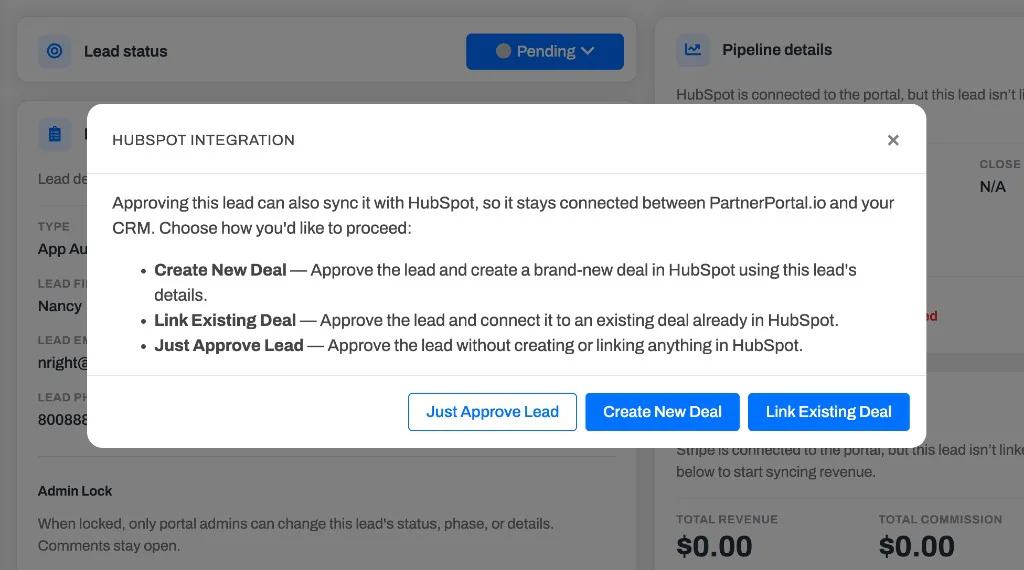
Section titled “Approving a lead: your sync options”When you approve a lead and your portal has a CRM connected, PartnerPortal shows a short dialog with up to three choices. This is where you decide what happens in the CRM at the moment of approval:
- Create new — approve the lead and create a brand-new record in your CRM from the lead’s details. This is the standard path.
- Link existing — approve the lead and connect it to a record that already exists in your CRM, instead of creating a duplicate. PartnerPortal shows a search box; find the record, select it, and confirm. Linking overwrites that record’s synced values with the portal lead’s values, so you’ll see a confirmation before it applies.
- Just approve — approve the lead without creating or linking anything in the CRM. Use this when a lead shouldn’t go to the CRM, or when you want to connect it later.
Whenever you link to an existing record — whether at approval or later from the lead’s detail page — PartnerPortal opens a search dialog. Type to search your CRM, select the deal you want from the results, and click Link Deal to connect it to the lead.
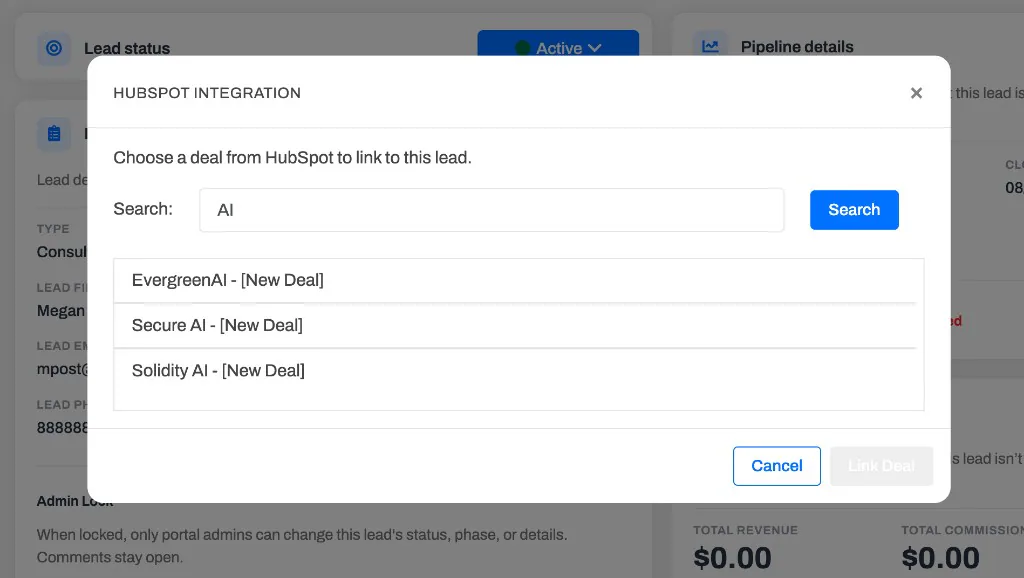
Choosing Link existing is how you prevent duplicate deals when the same company or contact is already in your CRM. For how PartnerPortal searches for and de-duplicates records at approval time, see How Channel Conflict Prevention Works.
Connecting a lead to your CRM later
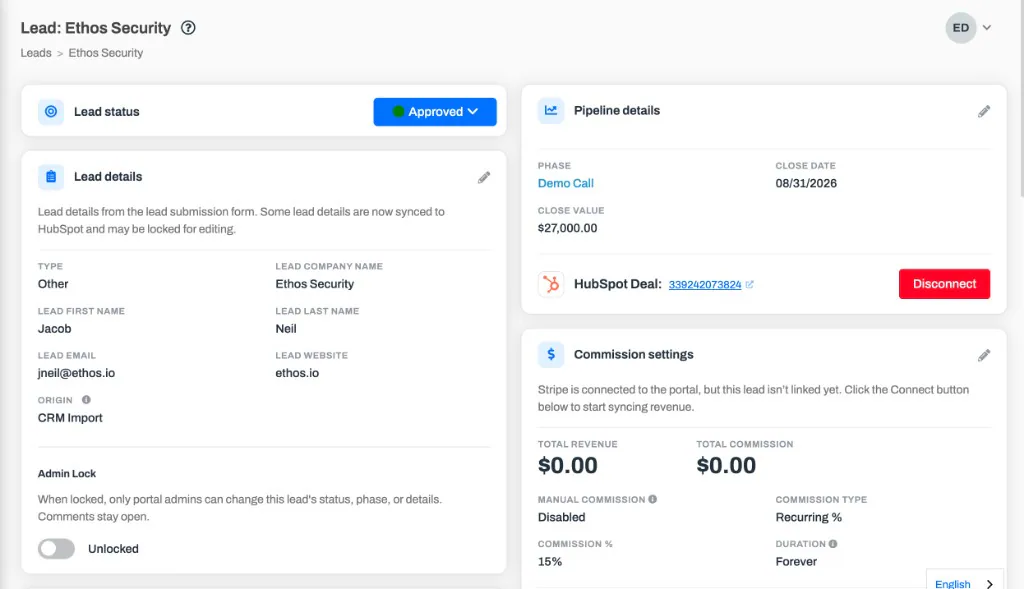
Section titled “Connecting a lead to your CRM later”If you approved a lead without syncing it — or a lead was approved before your CRM was connected — you can connect it any time from the lead’s detail page. An approved lead that isn’t yet linked shows a Connect button in its pipeline details.
Open the lead’s detail page.
Click Connect.
Choose Create new to create a fresh CRM record, or Link existing to search for and link to a record already in your CRM.
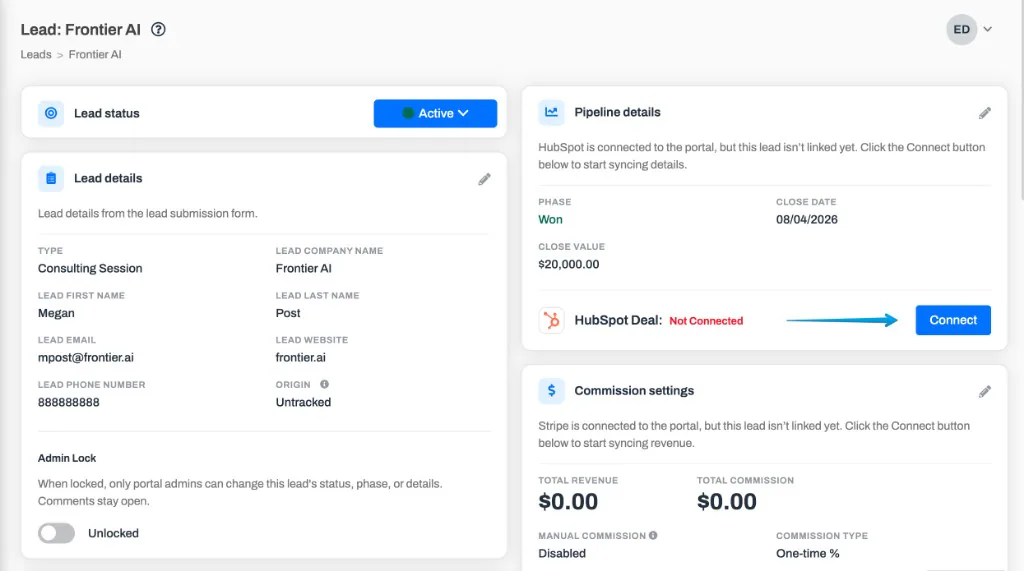
Once a lead is connected, that same area shows the linked CRM record as a deep link — click it to open the exact deal, opportunity, or record directly in your CRM — alongside a Disconnect option. Disconnecting removes the link between the portal lead and its CRM record.